Gimkit Create: How to Make a Game and Level Up Your Classroom in 2026
Have you ever wished school felt more like a video game? If you’re a teacher or a student, you probably know that sitting through a long lecture can be tough. That is where Gimkit create comes in to save the day! It is a cool tool that turns boring study sessions into an exciting quest for virtual cash. Imagine answering a math question and earning enough “money” to buy a shield or a secret power-up. It sounds fun, right?
In this guide, we are going to look at how you can use Gimkit create to make your very own learning adventures. Whether you want to host a Gimkit live session for your friends or just explore the Gimkit home dashboard, I’ve got you covered. Let’s dive into the world of gamified learning and see how easy it is to gimkit create a game that everyone will love to play.
Gimkit Fast Facts & Table
| Feature | Details |
| Full Name | Gimkit |
| Main Function | Game-based learning platform |
| Created By | Josh Feinsilber (as a high school student!) |
| Top Use Case | Classroom reviews and homework |
| Best Feature | In-game economy and power-ups |
| Devices | Works on laptops, tablets, and phones |
| Popular Modes | Fishtopia, Trust No One, The Floor is Lava |
What Exactly is Gimkit Create?
When we talk about Gimkit create, we are talking about the heart of the platform. It is the place where teachers and students build “Kits.” A Kit is basically a set of flashcards or questions that act as the engine for the game. But unlike a normal quiz, Gimkit create game options let you take those questions and put them into different worlds. You could be a detective in a space station or a farmer in a digital village!
Setting Up Your Gimkit Home Dashboard
Before you can start building, you need to visit the Gimkit home page. This is your command center. When you log in, you will see all your past projects and your “Kits.” It is very simple to navigate. Even a 5th grader can find the “New Kit” button in a heartbeat. From here, you can organize your classes, see how your students are doing, and pick which game mode you want to play next.
How to Gimkit Create a Game from Scratch
Ready to build? To gimkit create a game, just click the green “New Kit” button. You will give your game a name, pick a language, and choose a subject like Science or History. Then, you start adding questions. You can type them in yourself or even import them from other sites like Quizlet. It’s like building with Legos—you just keep adding pieces until your game is ready for the class to play.
Exploring the Gimkit Create Game Options
One of the best things about Gimkit create is the variety. You aren’t just making a multiple-choice quiz. You can add images and even audio to your questions! This is great for younger kids or for learning new languages. When you gimkit create a game, you get to decide how much “money” players get for a right answer and how much they lose for a wrong one. This keeps the stakes high and the fun going!
Hosting Your First Gimkit Live Session
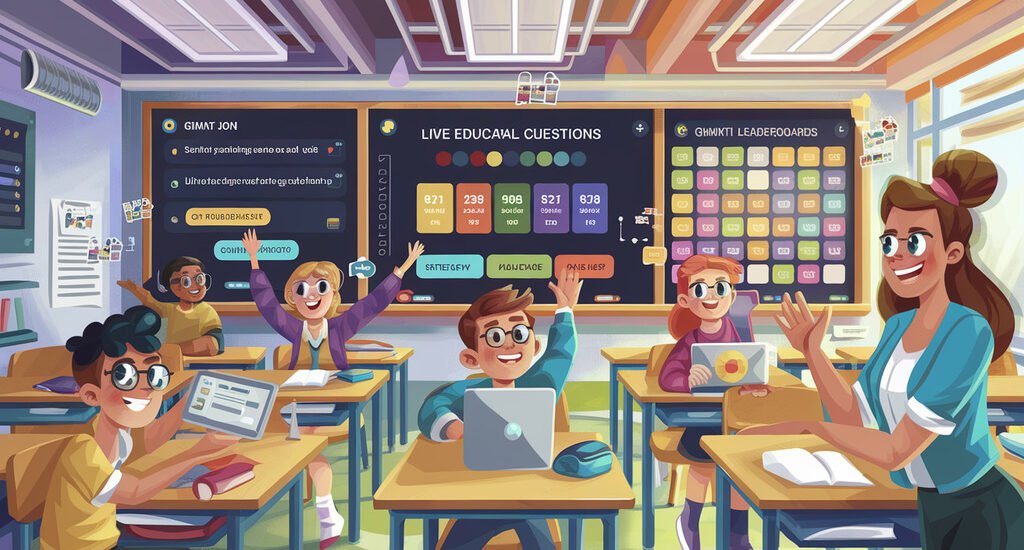
Once your Kit is finished, it’s time for Gimkit live. This is when the whole class plays together at the same time. You just hit the “Play Live” button, and a code pops up on the screen. Students go to the website on their devices, enter the code, and boom—they are in! As the host, you can watch the leaderboard change in real-time as your students battle it out to be the richest player in the room.
Understanding the In-Game Shop and Power-Ups
What makes Gimkit create different from other quiz games? It’s the shop! While playing a Gimkit live game, students can spend their virtual earnings. They can buy “Multiplier” power-ups to earn more money per question or “Insurance” so they don’t lose as much if they get a question wrong. There are even “sabotage” items they can use to freeze a friend’s screen for a few seconds. It adds a layer of strategy that keeps everyone engaged.
Using KitCollab for Team Building
Did you know that students can help you gimkit create a game? There is a feature called KitCollab. In this mode, every student in the class submits a question. You, as the teacher, get to look at them and click “Accept” or “Reject.” It is a fantastic way to make sure everyone is participating. It also gives the students a sense of ownership over the game they are about to play.
Managing Your Content from Gimkit Home
Your Gimkit home dashboard isn’t just for making games; it’s for keeping them organized. You can create folders for different periods or subjects. If you find a Kit that another teacher made and shared, you can copy it to your own dashboard and edit it. This saves a lot of time! You can always go back and change your questions if you realize one of them was a bit too tricky for the class.
Why Students Love the Gimkit Create Experience
Kids love Gimkit create because it doesn’t feel like work. It feels like a challenge. In 2026, we know that kids learn best when they are active. Instead of just reading a book, they are competing, strategizing, and helping their teammates. Whether it’s a fast-paced game of “Humans vs. Zombies” or a quiet session of “Fishtopia,” the platform makes sure no one is left out of the fun.
Tips for Making the Best Learning Kits
If you want to gimkit create a game that works, keep your questions short. Use funny images to keep the mood light. Also, try to mix easy questions with hard ones. This helps the students who might be struggling feel like they can still win some cash. Remember, the goal of Gimkit live is to make everyone feel like a winner while they are actually learning important facts for their next big test.
Conclusion: Ready to Start Creating?
Now you know everything you need to get started with Gimkit create. From setting up your Gimkit home dashboard to hosting a wild Gimkit live match, the power to make learning fun is in your hands. It is a simple, powerful, and totally addictive way to study. So, why wait? Go ahead and gimkit create a game today and watch your classroom transform into a high-energy gaming arena!
Frequently Asked Questions (FAQs)
1. Is it free to use Gimkit create?
Yes! There is a free version called “Gimkit Basic.” It lets you create unlimited Kits and play several game modes. If you want every single game mode and extra features, there is a paid version called “Gimkit Pro.”
2. Can students make their own games?
Absolutely! Students can use Gimkit create to build their own Kits to study with friends. It’s a great way for them to practice what they’ve learned in class.
3. How do I join a Gimkit live game?
To join, you don’t even need an account. Just go to the join page, type in the code your teacher gives you, enter your name, and you are ready to play!
4. What happens if I lose all my money in the game?
Don’t worry! You can’t really “lose” the game. You just keep answering questions to earn more money back. It’s all about learning from your mistakes and trying again.
5. Can I use Gimkit for homework?Yes, you can! Teachers can assign a Kit as “Homework” from the Gimkit home dashboard. Students can then play it at their own pace until they reach a certain goal or deadline.