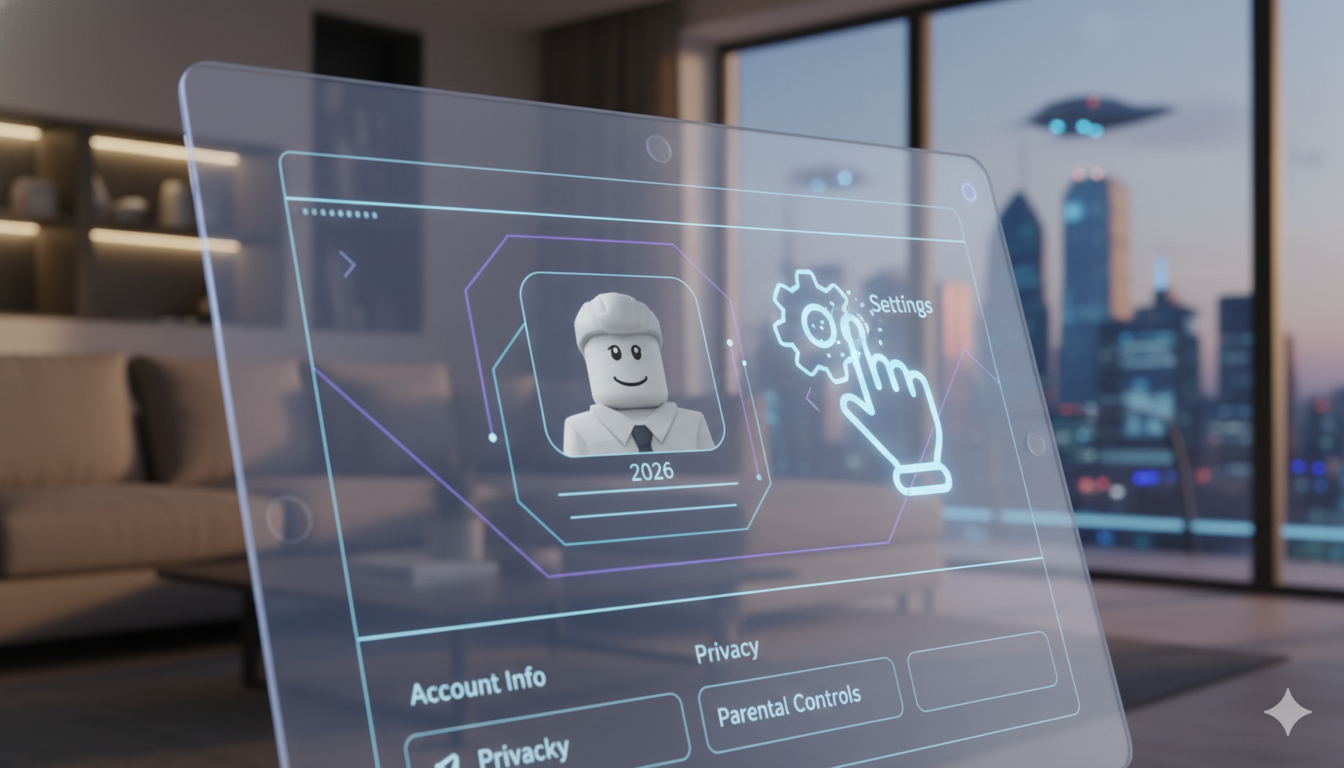
How to Set Up Roblox Parental Controls: 2026 Safety Guide for Parents
Roblox is a massive world where kids can play, create, and chat with friends. It is full of fun adventures, but as a parent, you might wonder if it is always safe. The good news is that roblox parental controls have become much more powerful in 2026. You now have the tools to decide exactly what your child sees and who they talk to. This guide will walk you through everything you need to know in simple steps.
Setting up these controls is not just about blocking things; it is about creating a safe space for your child to explore. By using a linked parent account, you can manage these settings from your own phone or computer. You won’t have to keep grabbing your child’s tablet to check on them. Let’s dive into the details and make Roblox a worry-free zone for your family.
Why You Should Use Roblox Parental Controls
Safety is the number one priority for any parent whose child is online. Without roblox parental controls, kids might accidentally find games with scary themes or talk to people they don’t know. Roblox has introduced new features like “Sentinel,” an AI that watches billions of messages to keep things friendly. However, your personal touch as a parent is still the best way to ensure safety.
By using these controls, you can stop “Robux” spending from getting out of hand and limit how long they play each day. It helps teach your kids about digital boundaries. When you take the time to set these up, you are showing your child that you care about their fun and their safety. It’s a great way to start a conversation about being a smart internet user.
Getting Started: Linking Your Parent Account
The biggest change in 2026 is the “Parent Privilege” account. Instead of using a shared PIN on your child’s device, you now link your own Roblox account to theirs. This gives you a personal dashboard where you can see their activity in real-time. To start, you will need to verify your age using a credit card or a government ID. This proves you are the adult in charge.
Once you are verified, you can “Add Parent” in your child’s settings. This link is the “key” to the whole system. It allows you to change settings without your child being able to undo them. It is much more secure than the old 4-digit PIN system that kids often guessed. This connection makes managing roblox parental controls faster and much more reliable for busy parents.
Setting Daily Screen Time Limits
We all know how hard it is to get a child to put down their device. Roblox now has a built-in screen time manager that does the hard work for you. You can set a daily limit, such as one hour on weekdays and two hours on weekends. Once the time is up, the app will gently lock them out until the next day.
This feature is great because it prevents “just one more game” arguments. The app sends a notification when time is almost up, giving your child a chance to save their progress. You can see a seven-day average of their playtime on your dashboard. This helps you understand their habits and decide if the current roblox parental controls for timing are working well for your family.
Managing Monthly Spending Limits
Roblox uses a virtual currency called Robux. It is very easy for a child to get excited and spend a lot of money on cool outfits or game upgrades. To prevent a surprise credit card bill, you must set a monthly spending limit. This cap resets at the start of every month and does not roll over.
You can also turn on “Spend Notifications.” This sends an email to you every time your child makes a purchase. It is a fantastic way to teach kids about the value of money. If they want a big item, they have to save their monthly “allowance” in the game. These roblox parental controls for money are essential for keeping your bank account safe while your child enjoys their hobby.
Understanding the New Content Maturity Labels
In the past, Roblox used age ratings, but now they use “Content Labels.” These labels tell you if a game has “Minimal,” “Mild,” “Moderate,” or “Restricted” content. For example, a “Minimal” game is like a cartoon and safe for everyone. A “Moderate” game might have some mild fighting or crude humor that is better for older kids.
On your parental dashboard, you can use a slider to choose the highest level your child can access. If you set it to “Mild,” they won’t even see “Moderate” games in their search results. This is one of the most effective roblox parental controls because it automatically filters out thousands of inappropriate games before your child ever sees them.
Controlling Who Can Chat with Your Child
Communication is often where the biggest risks are. In 2026, Roblox requires a “Facial Age Check” for anyone who wants to use chat features. This helps make sure kids are only talking to other kids in their age group. As a parent, you can choose to turn off “Experience Chat” (talking in games) or “Direct Chat” (private messages) entirely.
For children under 13, direct messaging is now turned off by default. You have to give explicit permission for them to talk to anyone. You can also view their “Connections List” to see who their friends are. If you see a username you don’t recognize, you can block them instantly. These roblox parental controls for communication are designed to stop strangers from reaching your child.
How to Block Specific Games
Sometimes, a game might be rated “Mild,” but you still don’t like it. Maybe it is too distracting or has themes you don’t agree with. Roblox now lets you block specific experiences by name. Even if the game fits your maturity settings, it will be hidden from your child’s account once you add it to the “Blocked” list.
To do this, go to your content restrictions and search for the game title. Click the “Block” button, and it is gone. This gives you granular power over what they play. It is one of the best roblox parental controls for parents who want to be very specific about the media their children consume. It ensures the platform feels personalized to your family’s values.
Quick Summary of Roblox Parental Controls (2026)
| Feature | What It Does | Best For |
| Parent Account Linking | Connects your account to your child’s account. | Full remote management. |
| Screen Time Limits | Sets a daily “shut off” time for the app. | Preventing screen addiction. |
| Spending Limits | Caps how many Robux can be bought monthly. | Avoiding big credit card bills. |
| Content Labels | Filters games by maturity (Minimal to Restricted). | Keeping content age-appropriate. |
| Chat Permissions | Controls who can send messages to your child. | Stopping contact from strangers. |
| Blocked Experiences | Lets you ban specific games by name. | Customizing the game library. |
Monitoring Recent Activity and Friends
A great habit for parents is to do a “Weekly Safety Check.” On your dashboard, you can see the “Recently Played” list. This shows you exactly what games your child has been spending time in. If you see a lot of new games, you might want to play them for five minutes to see what they are about.
You should also check the “Connections” tab. This lists every person your child has friended. In 2026, Roblox shows you the “Age Group” of these friends too. If your child is 10 and has a friend in the “Adult” group, that is a red flag you should check immediately. These roblox parental controls give you the visibility you need to stay involved.
Using AI Safety with “Sentinel”
Roblox uses a powerful AI called Sentinel to monitor the platform 24/7. It looks for bad words, bullying, and people trying to share personal info like phone numbers or home addresses. While the AI is very smart, it isn’t perfect. That is why your manual roblox parental controls are so important to use alongside it.
The AI will often “hashtag” out bad words (turning them into #####). If your child mentions they are seeing a lot of hashtags, it means someone is trying to say things they shouldn’t. You can then use your parental dashboard to see who they were playing with and report the user if necessary. This teamwork between AI and parents makes the platform much safer.
Safety Tips Beyond the Settings
No matter how many roblox parental controls you turn on, talking to your child is the best defense. Remind them never to give out their real name, school, or city. Tell them that if someone makes them feel uncomfortable or asks them to “move to another app” like Discord or Snapchat, they should tell you right away.
I always suggest having kids play in a “public” part of the house, like the living room, instead of their bedroom. This makes it easy for you to hear the game sounds and see what is on the screen. When safety is a family conversation rather than just a set of “rules,” kids are much more likely to follow the boundaries you’ve set.
FAQs About Roblox Parental Controls
1. Can my child bypass the screen time limit?
No, if you use the linked parent account, the limit is very secure. Your child would need your account password or your verified ID to change the time.
2. Does it cost money to use parental controls?
No, all of these safety features are free. You only need to verify your age (which might involve a temporary $1 charge that is refunded) to prove you are an adult.
3. Can I see the actual messages my child sends?
While you can’t see a live “chat log” from your own dashboard, you can log into your child’s account at any time to read their message history if you are concerned.
4. What happens if I block a game?
The game will disappear from their search results and their “Continue Playing” list. It will be as if the game does not exist on Roblox for them.
5. How do I turn off voice chat?
In your parental dashboard, go to “Communication” and toggle “Voice Chat” to off. This is highly recommended for younger children as it is harder for AI to monitor.
6. Is Roblox safe for a 7-year-old?
Yes, but only if you use roblox parental controls. Set the content level to “Minimal” and turn off all chat features to ensure a safe, solo-play experience.
Conclusion: Take Action for a Safer Playtime
Roblox is a world of endless creativity, but it needs a watchful eye. By setting up roblox parental controls today, you are giving your child the freedom to play while you keep the peace of mind. Start by linking your account and setting a spending limit—it only takes five minutes but protects your family for years.
Do you have questions about a specific game your child is playing? Check your parental dashboard now to see their recent activity! Stay involved, stay informed, and keep the fun going safely.